Package com.codename1.ui
Main widget package containing the component/container "composite" similar both in terminology and design to Swing/AWT.
Component/Container Relationship
Containers can be nested one within the other to form elaborate UI's. Containers use
com.codename1.ui.layouts to arrange the components within. This is important
as it allows a container can adapt to changing resolution, DPI, orientation, font size etc.
A container doesn't implicitly reflow its elements and in that regard follows the direction of AWT/Swing. As
a result the layout can be animated to create a flowing effect for UI changes. This also provides improved
performance as a bonus. See this sample of Container animation:
Form hi = new Form("Layout Animations", new BoxLayout(BoxLayout.Y_AXIS));
Button fall = new Button("Fall");
fall.addActionListener((e) -> {
    for(int iter = 0 ; iter < 10 ; iter++) {
        Label b = new Label ("Label " + iter);
        b.setWidth(fall.getWidth());
        b.setHeight(fall.getHeight());
        b.setY(-fall.getHeight());
        hi.add(b);
    }
    hi.getContentPane().animateLayout(20000);
});
hi.add(fall);
You can learn more about layout managers com.codename1.ui.layouts and about
event handling com.codename1.ui.events.
Component Gallery
The component gallery below isn't complete or exhaustive but it should give you a sense of the types of widgets available within Codename One in a glance.
AutoCompleteTextField
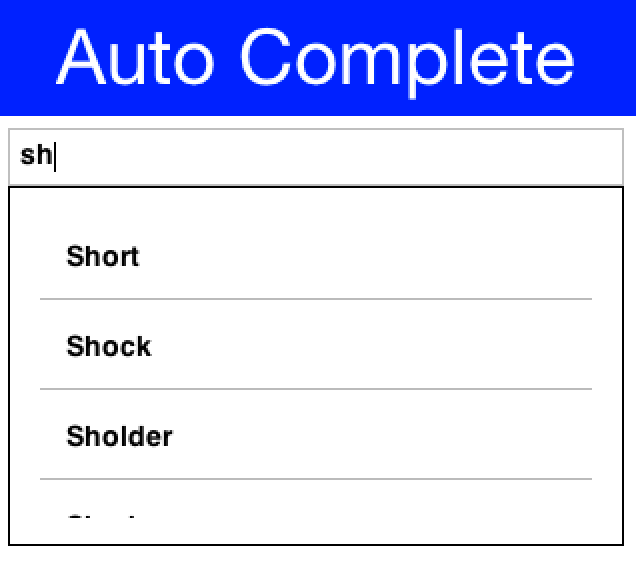
com.codename1.ui.AutoCompleteTextField provides suggestions as you type into the text
field
BrowserComponent
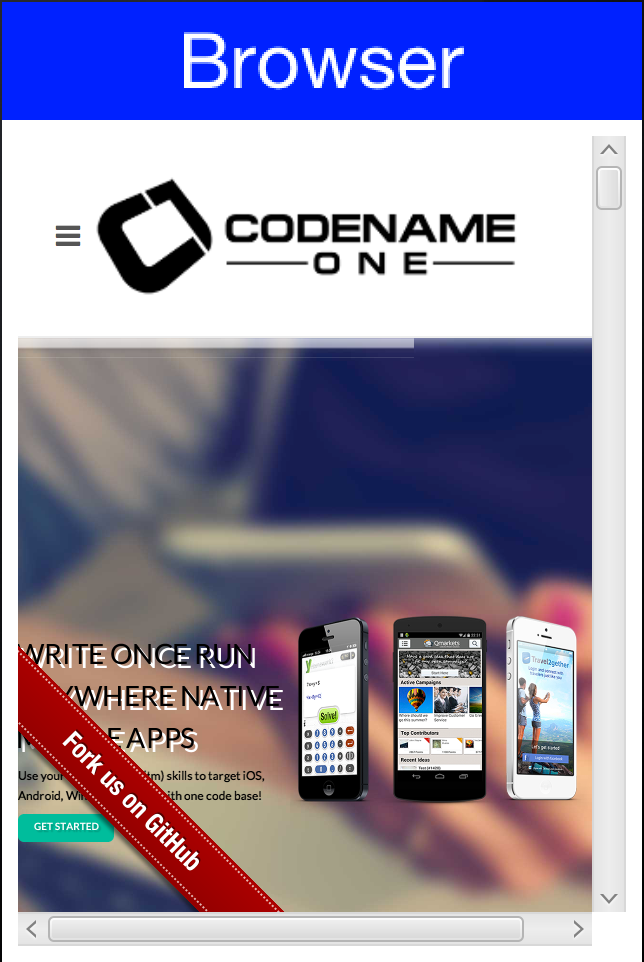
com.codename1.ui.BrowserComponent allows us to embed an OS native browser into the app and
connect to its JavaScript runtime!
Button
com.codename1.ui.Button allows us to bind events to a click
Link Button

com.codename1.ui.Button can also be used as a hyperlink
Calendar

com.codename1.ui.Calendar presents a visual date picker. Notice that we recommend using
the
com.codename1.ui.spinner.Picker class which is superior when running on the device for most use cases.
CheckBox
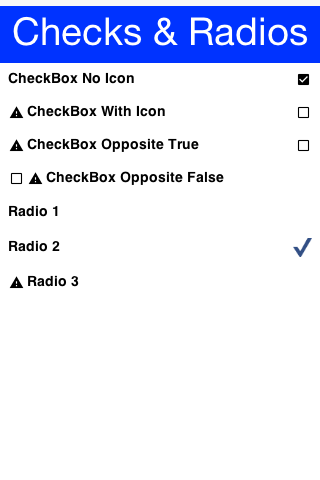
com.codename1.ui.CheckBox provides a check flag to tick on/off.
com.codename1.ui.RadioButton provides an exclusive check marking that only applies to one radio within
the group.
Both can also appear as toggle buttons
ComboBox
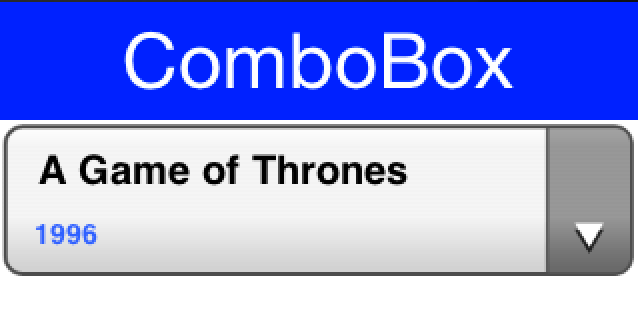
com.codename1.ui.ComboBox is a list with a single visible entry that can popup the full
list. Notice that we recommend using the
com.codename1.ui.spinner.Picker class which is superior when running on the device for most use cases
Command
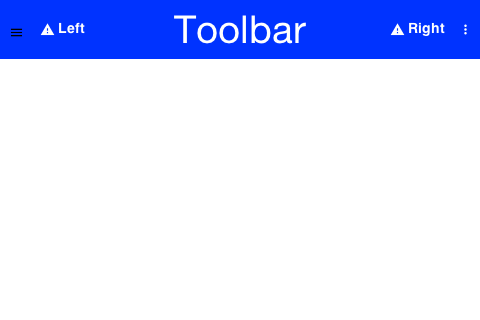
com.codename1.ui.Command & com.codename1.ui.Toolbar provide deep customization
of the title area and allow us to place elements in the side menu (hamburger), overflow menu etc.
ComponentGroup
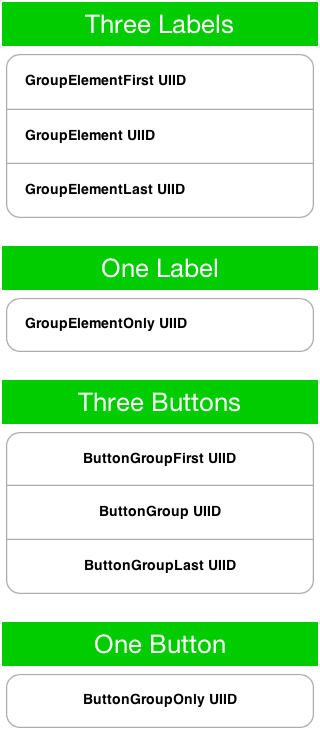
com.codename1.ui.ComponentGroup allows us to group components together in a a group and
manipulate
their UIID's.
Dialog
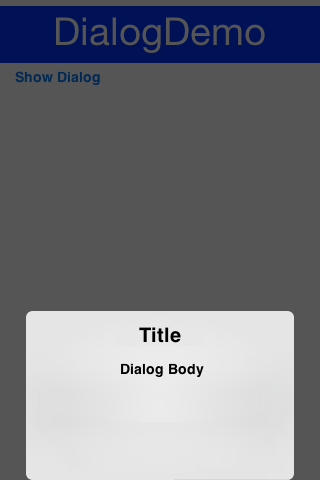
com.codename1.ui.Dialog allows us to notify/ask the user in a modal/modless way.
InfiniteContainer
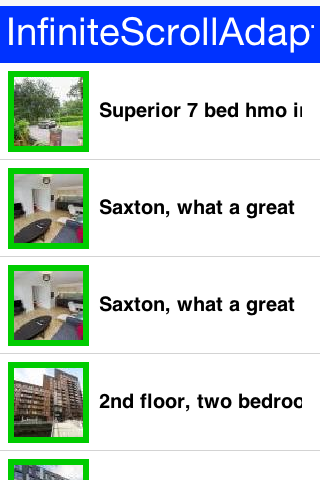
com.codename1.ui.InfiniteContainer & com.codename1.components.InfiniteScrollAdapter
implement a com.codename1.ui.Container that can dynamically fetch more data
Label
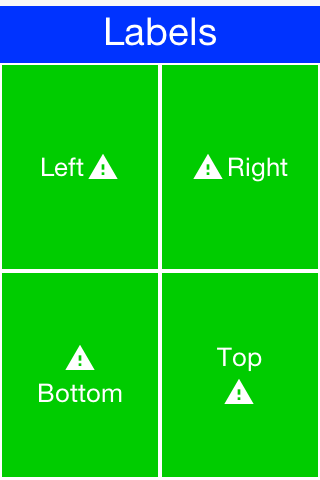
com.codename1.ui.Label displays text and/or icons to the user
List
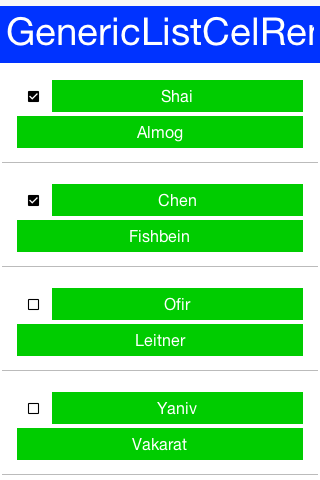
com.codename1.ui.List a list of items, this is a rather elaborate component to work with!
We often
recommend just using com.codename1.ui.Container, com.codename1.ui.InfiniteContainer or
com.codename1.components.InfiniteScrollAdapter
MultiList
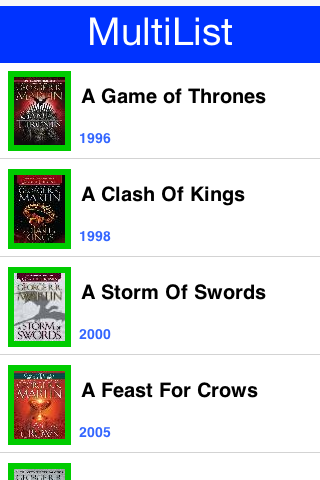
com.codename1.ui.list.MultiList a list that is a bit simpler to work with than List com.codename1.ui.List although
our recommendation to use something else still applies
Slider

com.codename1.ui.Slider allows us to indicate progress or allows the user to drag a bar to
indicate
volume (as in quantity)
SwipeableContainer
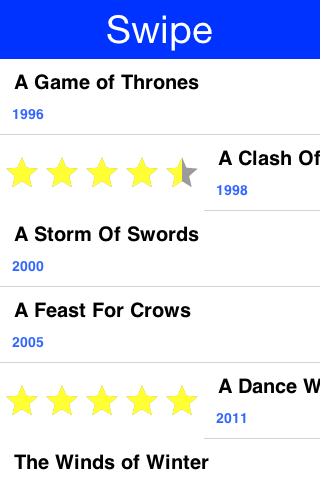
com.codename1.ui.SwipeableContainer enables side swipe gesture to expose additional
functionality
Tabs
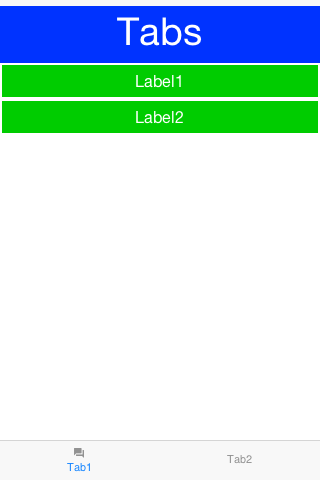
com.codename1.ui.Tabs places components/containers into tabbable entries, allows swiping
between choices thru touch
Carousel
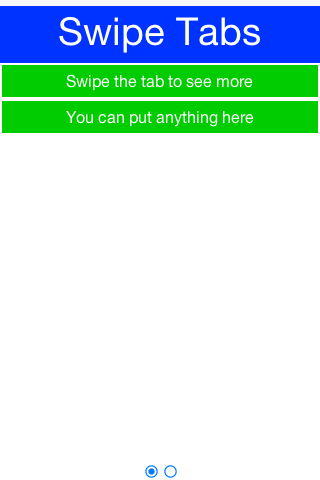
com.codename1.ui.Tabs can also be used as a swipe carousel
TextArea/Field
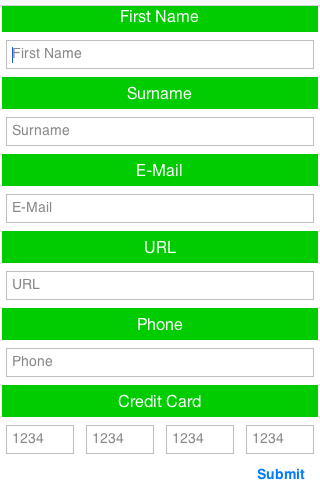
com.codename1.ui.TextArea & com.codename1.ui.TextField allow for user input
via
the keyboard (virtual or otherwise)
TextComponent
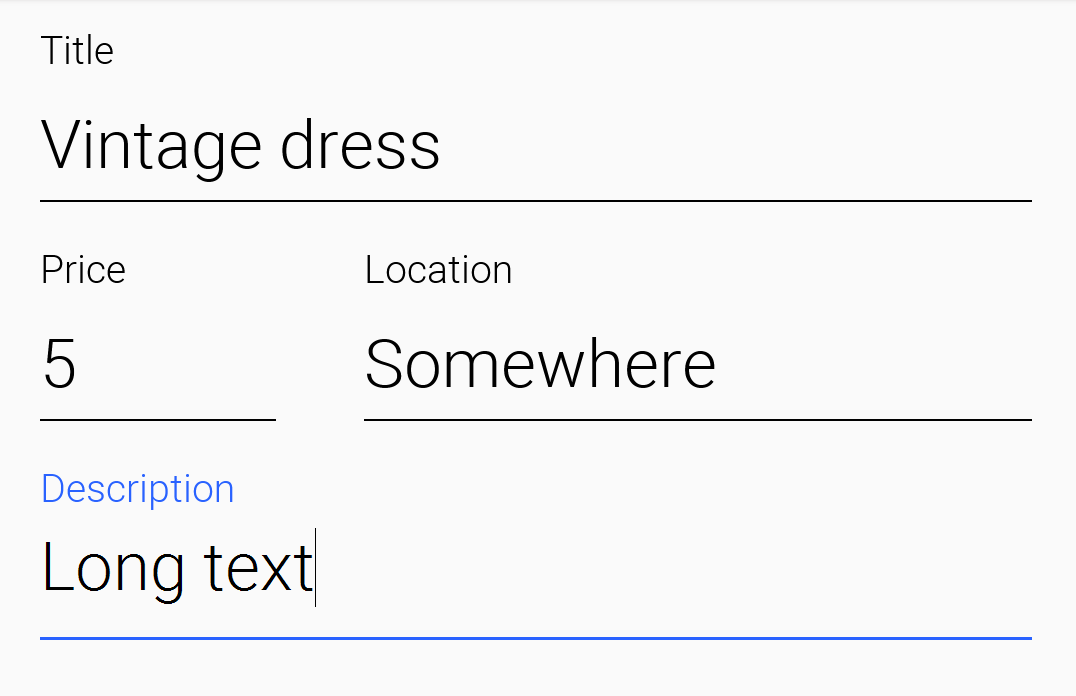
com.codename1.ui.TextComponent & com.codename1.ui.PickerComponent wrap the
text field and picker respectively and adapt them better to iOS/Android conventions
Table
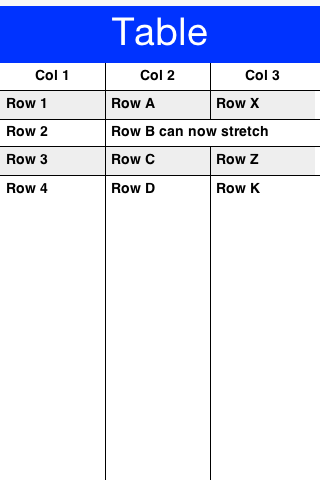
com.codename1.ui.table.Table displays optionally editable tabular data to the user
Tree
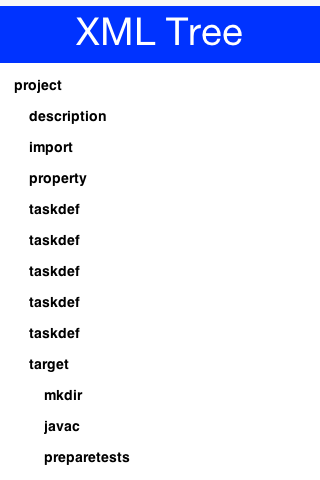
com.codename1.ui.tree.Tree displays data in a tree like hierarchy
ChartComponent
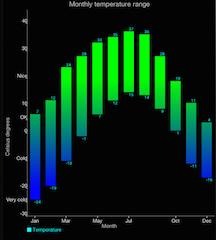
com.codename1.charts.ChartComponent can embed a wide range of visualization aids and
animations into your app
ImageViewer

com.codename1.components.ImageViewer swipe, pinch to zoom and pan images
InfiniteProgress
com.codename1.components.InfiniteProgress provides a constantly spinning component
InteractionDialog
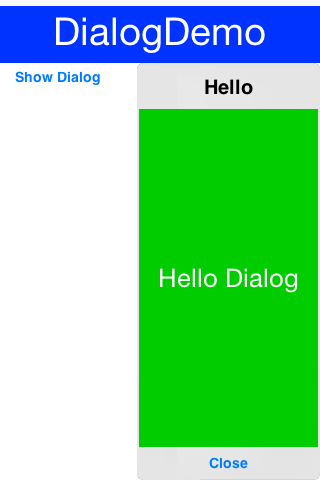
com.codename1.components.InteractionDialog an "always on top" com.codename1.ui.Dialog
used for non-form modal UI patterns. You can make static Dialog.show(...) use
InteractionDialog by default with the theme constant defaultInteractionDialogModeBool
or via com.codename1.ui.Dialog#setDefaultInteractionDialogMode(boolean).
MediaPlayer
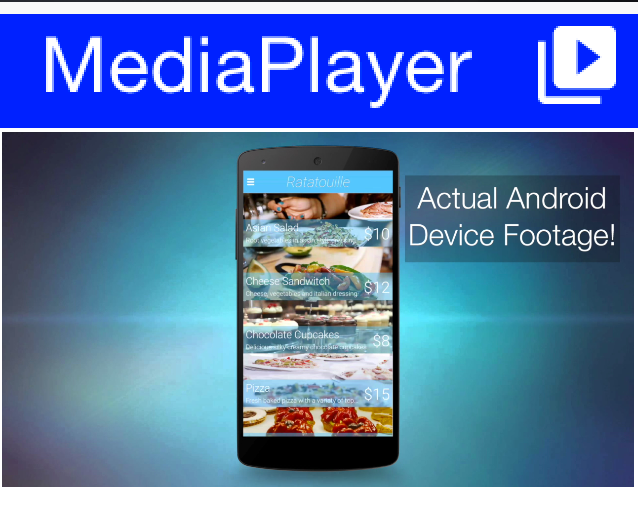
com.codename1.components.MediaPlayer allows playing media including video coupled with the
com.codename1.media.MediaManager
MultiButton
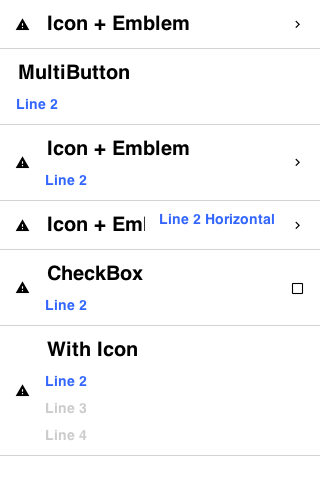
com.codename1.components.MultiButton is much more than a button
OnOffSwitch
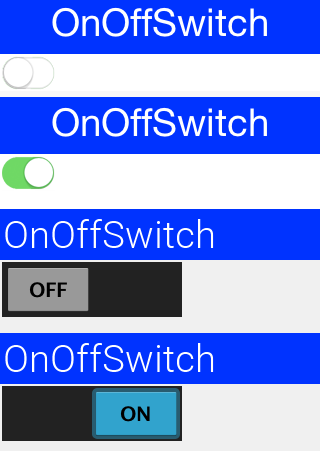
com.codename1.components.OnOffSwitch allows us to toggle a state similar to the com.codename1.ui.CheckBox
but with a more modern look
ShareButton
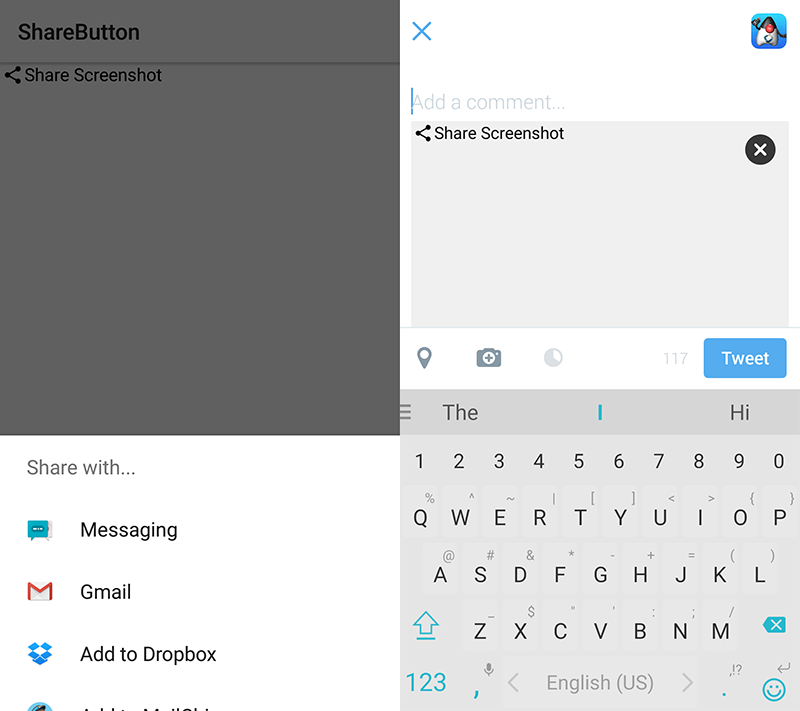
com.codename1.components.ShareButton provides native "social share" functionality
SpanLabel
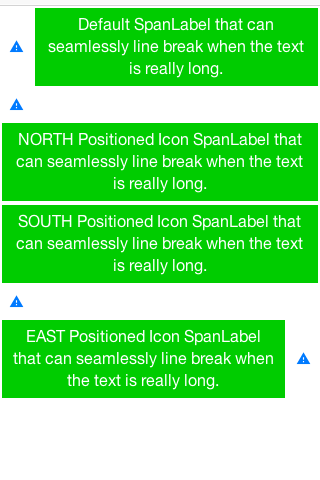
com.codename1.components.SpanLabel a text label that "seamlessly" breaks lines
SpanButton
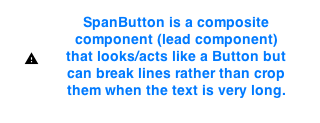
com.codename1.components.SpanButton a button that "seamlessly" breaks lines
Picker (Date)
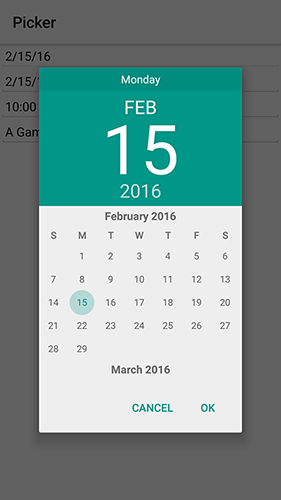
com.codename1.ui.spinner.Picker allows us to show an OS native picker UI (Date Picker)
Picker (Time)
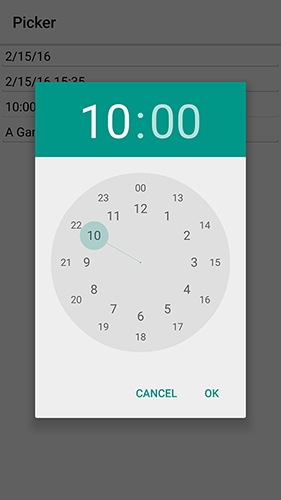
com.codename1.ui.spinner.Picker allows us to show an OS native picker UI (Time Picker)
ToastBar
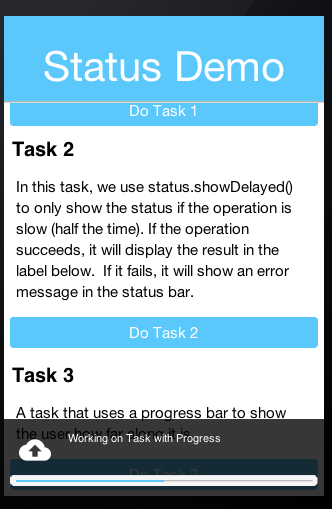
com.codename1.components.ToastBar shows a non-obtrusive notice on the bottom of the Form
SignatureComponent
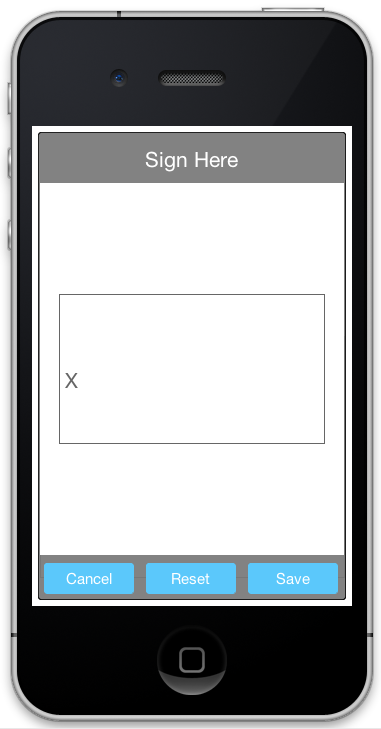
com.codename1.components.SignatureComponent shows a dialog that allows the user to "sign"
using the touch screen
Accordion
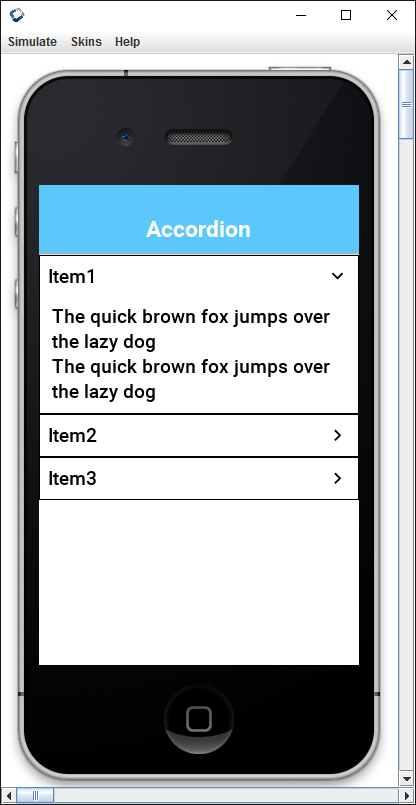
com.codename1.components.Accordion displays collapsible content panels
FloatingHint
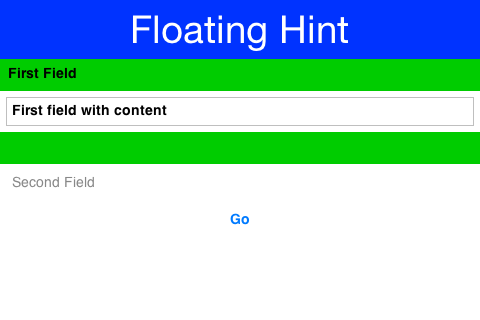
com.codename1.components.FloatingHint animates the text field hint into a label on top of
the text field and visa versa
FloatingActionButton
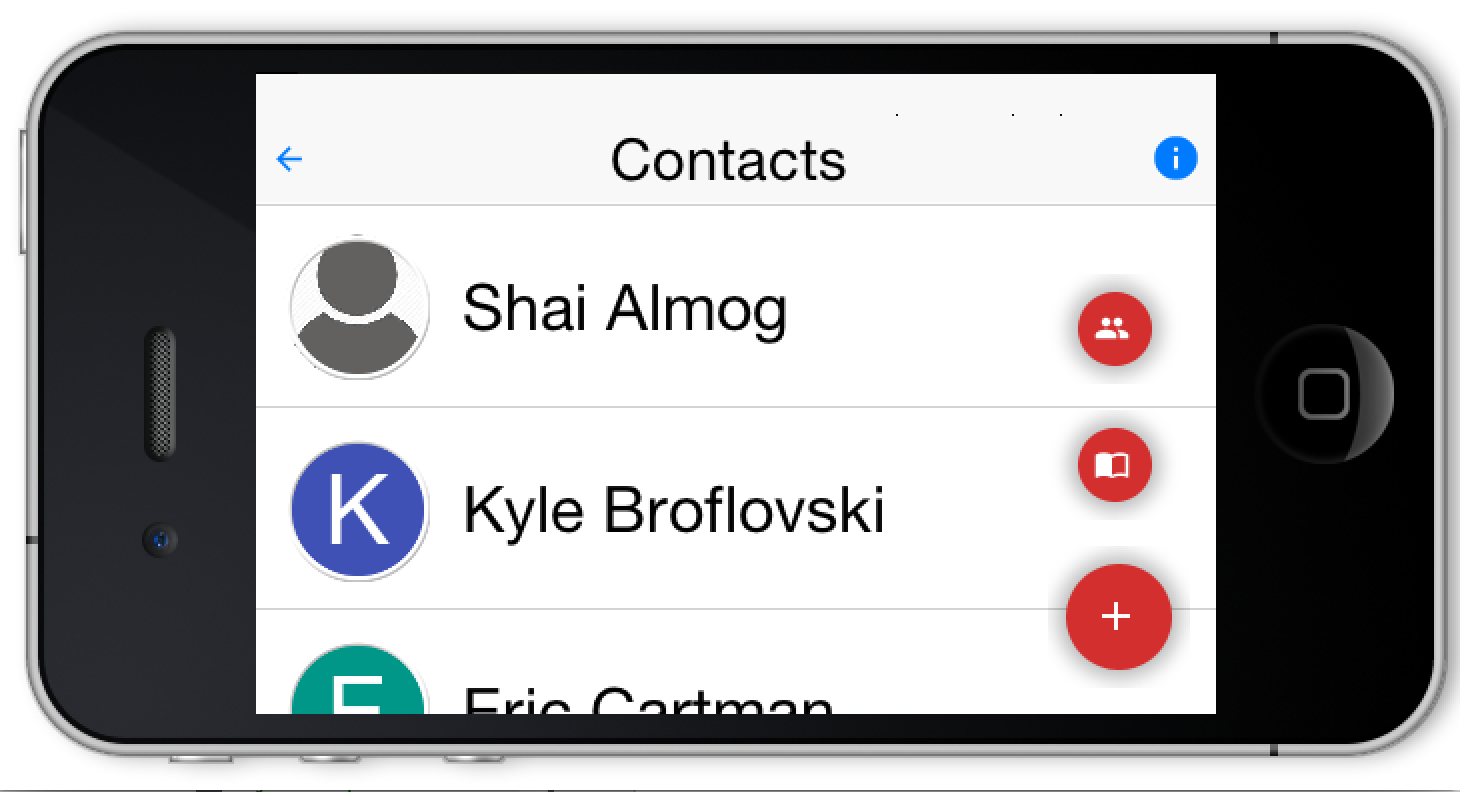
com.codename1.components.FloatingActionButton hovers over the UI presenting a default
action
-
ClassDescriptionShared dialog contract for
DialogandInteractionDialog.Base class for the pure Codename One visual editors (rich text and code).Describes a color-vision deficiency selected in the operating system or simulated by the Java SE simulator.Animation manager concentrates all of the animations for a given form into a single place that allows us to manage all mutations to a Form in a way the prevents collisions between mutations.ATextComponentversion ofcom.codename1.ui.AutoCompleteTextFieldAllows filtering the entries in the auto completeAn editablecom.codename1.ui.TextFieldwith completion suggestions that show up in a drop down menu while the user types in text.Exception that is thrown if attempting to run invokeAndBlock while blocking is disabled.The browser component is an interface to an embeddable native platform browser on platforms that support embedding the native browser in place, if you need wide compatibility and flexibility you should check out the HTMLComponent which provides a lightweight 100% cross platform web component.A wrapper class for a literal javascript expression that can be passed as an arg injava.lang.Object[]).A wrapper class for a Javascript value that is returned via thecom.codename1.util.Callback)method.Enum with the possible types for aJSRefobject.Encapsulates a WebView that is contained in its own separate window when run on a Desktop (e.g. Simulator).A future that is returned from the eval() method.Button is the base class for several UI widgets allowing clickability.This class is used to create a multiple-exclusion scope forcom.codename1.ui.RadioButton.Date widget for selecting a date/time value.CheckBox is a button that can be selected or deselected and displays its state to the user.A set of alternative clipboard representations keyed by MIME type.This is a global context static class designed for static import, this class allows us to write more terse code.Common constants for Display and CNA single code completion proposal returned by aCodeCompletionProviderand shown in theCodeEditorcompletion popup.Supplies IDE style code completion proposals to aCodeEditor.A diagnostic (error / warning / information) shown in aCodeEditoras a squiggly underline over a source range, a marker in the line-number gutter and a tooltip carrying the message.An IDE style source code editor with syntax highlighting, a line-number gutter and asynchronous code completion.ComboBox<T>AComboBoxis a list that allows only one selection at a time, when a user clicks theComboBoxa popup button with the full list of elements allows the selection of a single element.The Command class provides a useful extension to the ActionListener interface in cases where the same functionality may be accessed by several controls.A collection of useful progress animations and utility methods.A progress animation that shows an animated circle.An empty progress animation.A progress animation that shows a block of text being typed.Base class for ProgressAnimationsThe component class is the basis of all UI widgets in Codename One, to arrange multiple components together we use the Container class which itself "IS A" Component subclass.A component group is a container that applies the given UIID to a set of components within it and gives the same UIID with "First"/"Last" prepended to the first and last components.A utility wrapper that allows a Component to be used as an Image so that it can be set as the icon for a Label or button.A tool to facilitate selection and manipulation of UI components as sets.Interface used for providing callbacks that receive a Component as input.Interface used by#map(com.codename1.ui.ComponentSelector.ComponentMapper)to form a new set of components based on the components in one set.Interface used by#filter(com.codename1.ui.ComponentSelector.Filter)to form a new set of components based on the components in one set.Conic (sweep) gradient.A composite pattern withComponent, allows nesting and arranging multiple components using a pluggable layout manager architecture.Parses the CSS color forms into a packed0xAARRGGBBinteger:#rgb,#rgba,#rrggbb,#rrggbbaa,rgb(...)/rgba(...)with integer or percentage components, and the CSS named-color subset.Describes the physical fold posture of a foldable or dual screen device such as a Galaxy Fold, Galaxy Flip, Pixel Fold or Surface Duo.A dialog is a form that occupies a part of the screen and appears as a modal entity to the developer.Central class for the API that manages rendering/events and is used to place top level components (Form) on the "display".A base class for images that dynamically painted, just like a normal component.An interface that can be implemented to provide editing capabilities for any component in the UI.A pure Codename One text field.EncodedImageis the workhorse of Codename One.Codename One currently supports 3 font types:FontImageallows using an icon font as if it was an image.Top level component that serves as the root for the UI, thisContainersubclass works in concert with theToolbarto create menus.Iterates through the components on this form in traversal order.Base class for SVG images emitted by the build-time transcoder (maven/svg-transcoder).Abstract description of a CSS-style gradient that can be used as a background or painted directly viaGraphics#fillGradient.Abstracts the underlying platform graphics context thus allowing us to achieve portability between MIDP devices and CDC devices.An interface implemented byComponentclasses that can display an icon.Abstracts the underlying platform images allowing us to treat them as a uniform object.A factory class for creating mutable images.This abstract Container can scroll indefinitely (or at least until we run out of data).A base class forcom.codename1.ui.TextComponent,com.codename1.ui.PickerComponentand potentially other components that wish to accept input in a dynamic way that matches iOS and Android native input guidelines.A container that allows you to use the same component on multiple forms.Allows displaying a single line of text and icon (both optional) with different alignment options.Multi-stop linear gradient at an arbitrary angle.LinearGradientPaint provides a way to fill aShapewith a linear gradient.List<T>A set of elements that is rendered using acom.codename1.ui.list.ListCellRendererand are extracted via thecom.codename1.ui.list.ListModel, notice that we strongly discourage usage of lists.This class represents the Form MenuBar.A base class for Paints that use multiple gradients.Colors spaces for gradients.Cycle methods for gradients.The NavigationCommand is a Command that navigates to a given Form.An interface for providing custom painting such as gradients.Paintercan be used to draw on components backgrounds.A peer component is essentially a "dummy" Codename One component used to calculate the position of the actual native platform specific component.A picker component similar tocom.codename1.ui.TextComponentthat adapts to native UI conventions and leverages thecom.codename1.ui.spinner.PickerAPI.Multi-stop radial gradient with CSS shape / extent / center / radius support.RadioButton is aButtonthat maintains a selection state exclusively within a specificButtonGroup.An Interface that any Component that could be released from the parent Form can implement.An image that stores its data as an integer RGB array internally, this image cannot be manipulated via Graphics primitives however its array is accessible and modifiable programmatically.A native visual editor for rich text / HTML content (a WYSIWYG editor).Clipboard content with both a plain-text fallback and optional rich representations.A read-only component that renders multi-styled, word-wrapped rich text: headings, bold / italic / underline / strike, inline code, colored and highlighted spans, per-paragraph alignment and indentation, ordered and unordered lists, block quotes, preformatted blocks, inline images and tappable hyperlinks.Resolves an image source string (as it appears in the markup, e.g.Controls how the component sizes itself relative to its content.Input formats understood byRichTextArea.An interface that is implemented by "selectable" components that hold icons, such asButton,SpanButton,MultiButton, etc...A light-weight dialog that slides up from the bottom of the screen on mobile devices.This is Menu Bar that displays it's commands on a side bar navigation similar to Google+/Facbook apps navigationThe slider component serves both as a slider widget to allow users to select a value on a scale via touch/arrows and also to indicate progress.Encapsulates the stroke used for drawing paths.SwipeableContainerallows us to side swipe a component and expose underlying configuration within it.A component that lets the user switch between a group of components by clicking on a tab with a given title and/or icon.An optionally multi-line editable region that can display text and allow a user to edit it.Encapsulates a text field and label into a single component.TextComponent extended to automatically add mask/unmask password button near the TextField; it acts like a normal TextComponent if the Constraint is not TextArea.PASSWORDA specialized version ofcom.codename1.ui.TextAreawith some minor deviations from the original specifically:An interface implemented byComponentclasses that can support setting/getting text.A low level text input client, the counterpart to a platform text input source (soft keyboard, IME, autocorrect and hardware keyboard).Immutable configuration handed to the platform when aTextInputClientbinds to the low level text input source (seecom.codename1.impl.CodenameOneImplementation#startTextInput).An immutable snapshot of the editing state shared between aTextInputClientand the platform text input source.Text selection support for Codename One applications.An interface that can be returned from any Component'sComponent#getTextSelectionSupport()method to provide text selection support on that component.Trigger types for text selection.Toolbar replaces the default title area with a powerful abstraction that allows functionality ranging from side menus (hamburger) to title animations and any arbitrary component type.The behavior of the back command in the titleCentral management for tooltips, this class can be derived/customized to override the default tooltip behavior.Encapsulates a 3D transform that can be used incom.codename1.ui.Graphicscontexts or withcom.codename1.ui.geom.Shapes to transform in various ways.Encapsulates an XML or JSON template for a UI component hierarchy.A factory for converting XML elements to Components.Default component factory that is used in templates.URLImageallows us to create an image from a URL.Invoked in a case of an errorAllows applying resize logic to downloaded images you can use constant resize behaviors defined in this class.Decorator hook applied to theConnectionRequestthat loads a network-backedURLImage.Represents a virtual input device that may need to be closed/disposed, providing a way Widgets that require exclusive access to the user's input (but perhaps not all of the user interactions with the app) need to provide a way for the form to dispose of it when a new input device needs to be displayed.